Version 0.2.0 · Windows, macOS and Web

The professional softphone for your phone system

Crystal-clear HD calls, AI noise suppression, colleague presence, team chat and one-click calling from your CRM — on the PBX you already have.

No account needed · Works with Asterisk, FreePBX, 3CX, FreeSWITCH and any SIP provider
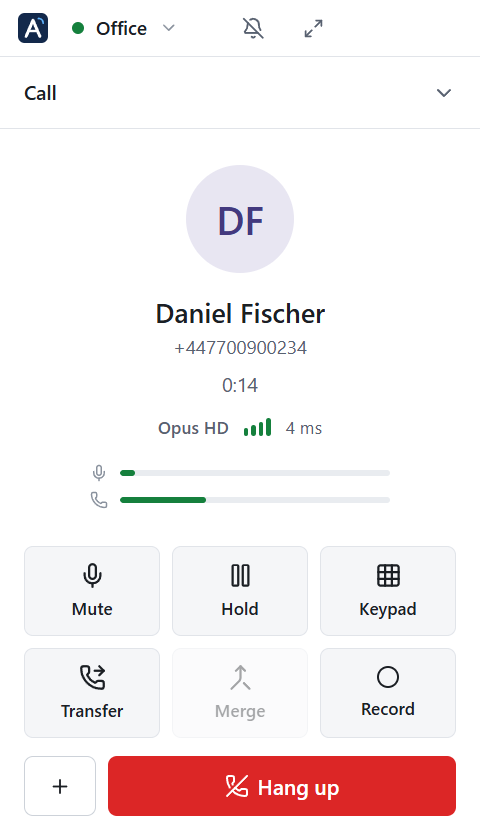
Astephon during a call: contacts with live presence and the call panel
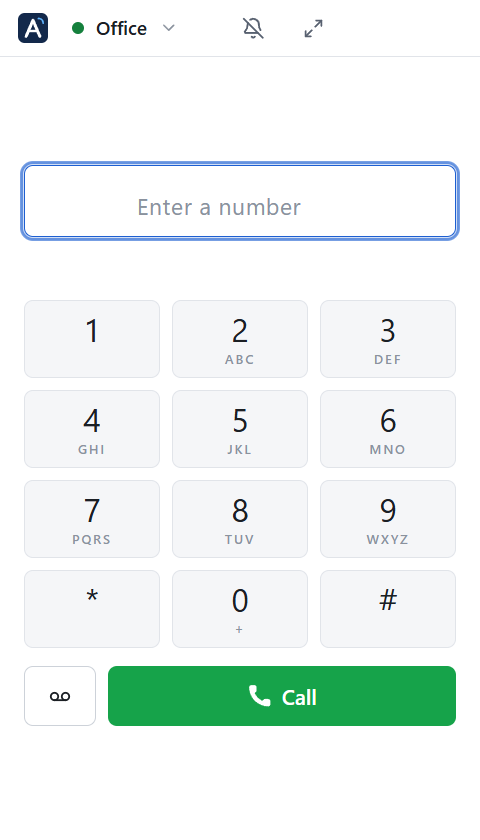
Compact dialer mode
Works withAsteriskFreePBX3CXFreeSWITCHVICIdialIssabelSIP trunks
Voice quality

Sounds like they're in the room

Full-band Opus at 48 kHz, lost packets rebuilt on the fly and a jitter buffer that adapts to your network — so calls stay clear on Wi-Fi, 4G and busy office lines.

  • AI noise suppression removes keyboards, fans and office chatter — on your side, and on the caller's if you want.
  • Opus, G.722 and G.711 with automatic fallback to whatever your PBX speaks.
  • Instant audio: the microphone is ready while it rings, so your first word is never cut off.
48 kHzfull-band voice
−35 dBbackground noise
< 0.1 sanswer to audio
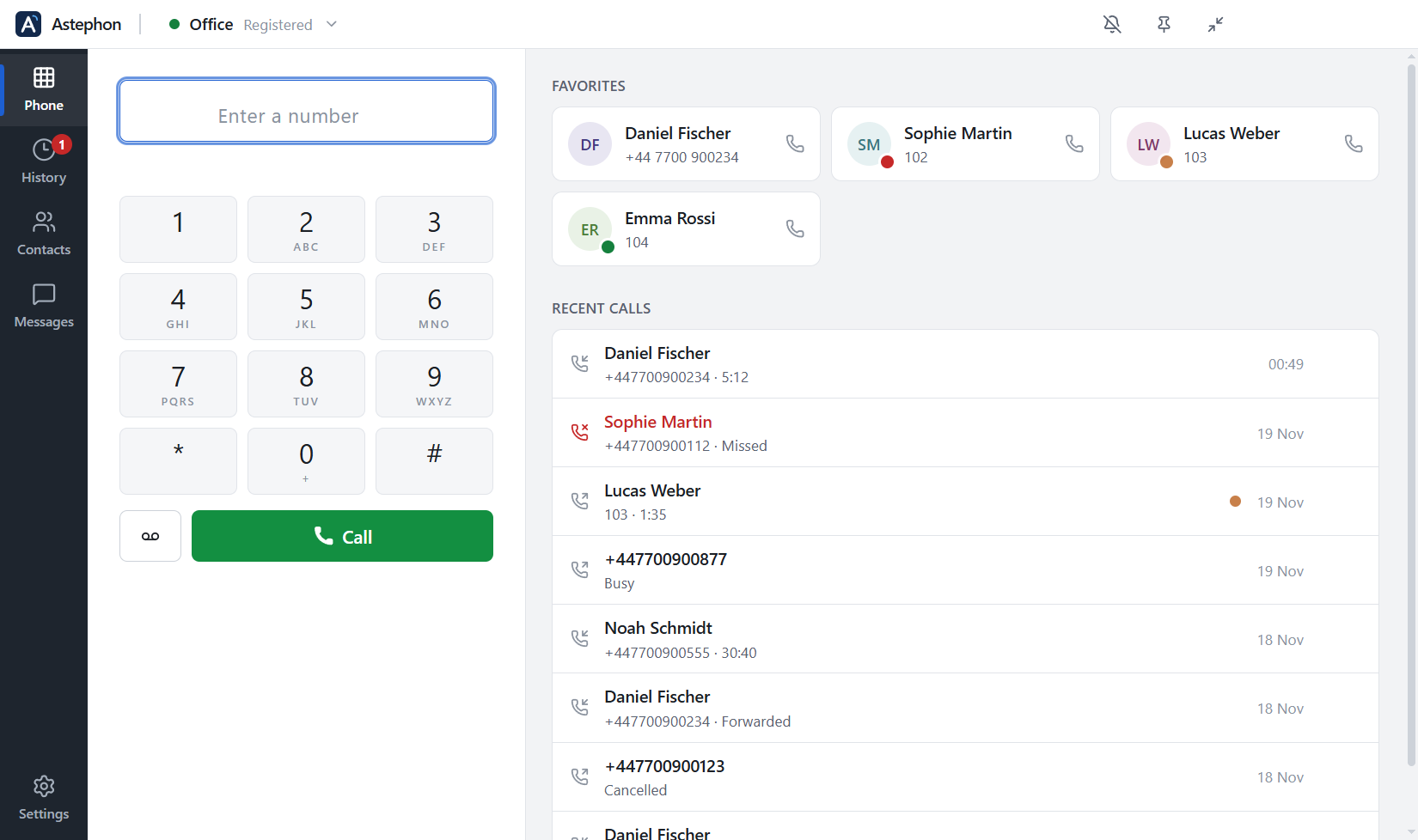
Dialer with favourites and recent calls
Teamwork

See your team. Talk to your team.

Know who is free before you transfer, message colleagues without leaving the phone, and bring a third person into the call with one click.

  • Presence (BLF) shows available, ringing and on a call for every extension.
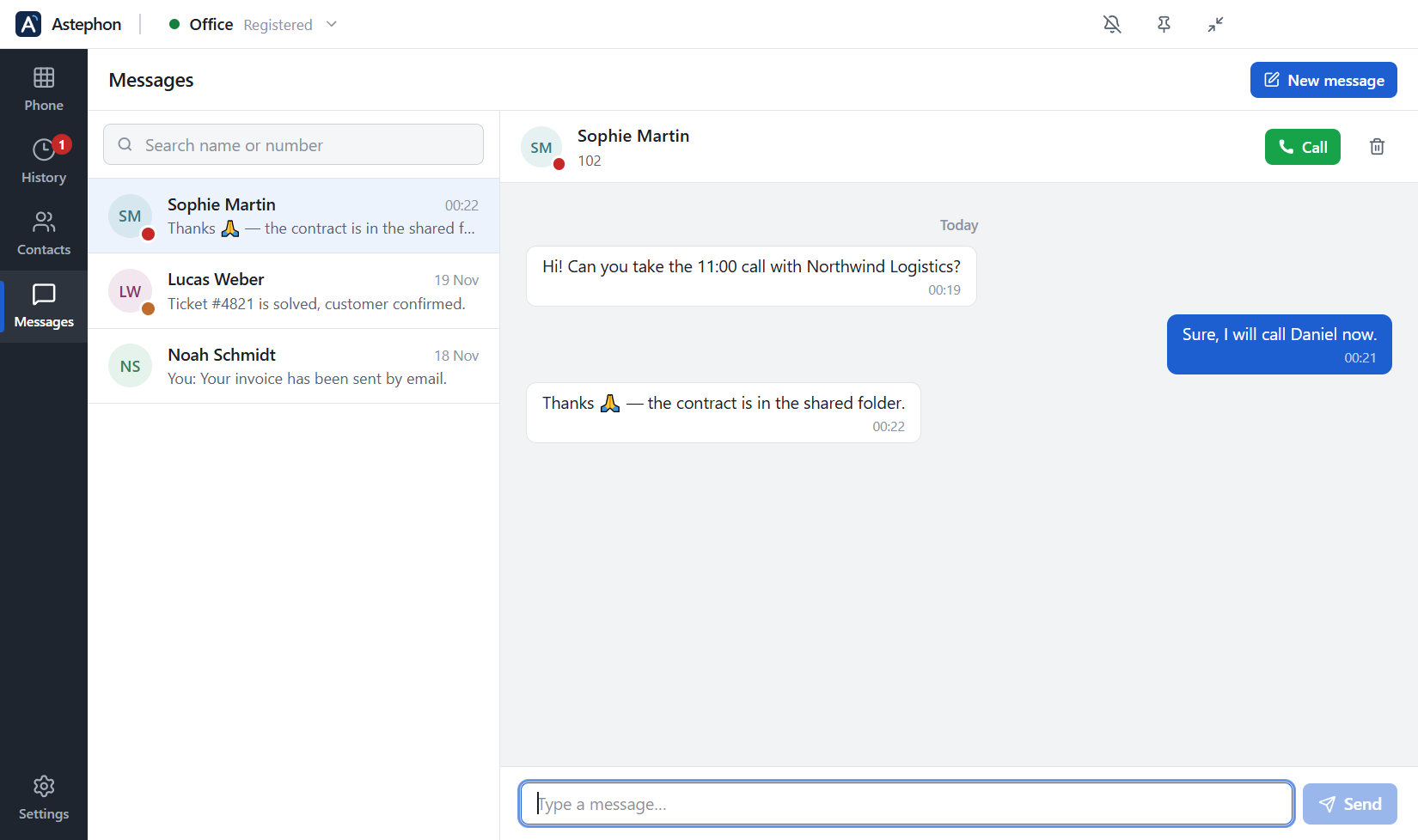
  • Chat over your phone system, with unread badges and notifications.
  • Transfer, conference, forward — blind or attended, three-way, always / busy / no answer.
Team chat with presence
Compact mode

A full phone — or just the dialer

One click shrinks Astephon to a slim dialer that sits next to your CRM. On a call, it becomes a compact call panel. Click again for the full window.

  • Click-to-call from any web CRM: tel:, sip: and callto: links dial instantly.
  • CRM pop-up: open the caller's record when the phone rings.
  • Global hotkeys to answer, hang up, mute or call a copied number.
Compact dialer
Compact mode during a call
Everything included

Built for the people who live on the phone

Sales teams, support desks and call centers — every feature, no add-ons.

HD voice

Opus 48 kHz, G.722 and G.711 with packet-loss recovery.

AI noise removal

Clean audio in open offices and busy homes.

Presence

Live status of colleagues' extensions.

Chat

Instant messages over SIP.

Conference

Merge calls into a three-way conference.

Recording

Record calls to stereo WAV, automatically or on demand.

CRM integration

Click-to-call and caller pop-ups.

Encrypted

TLS signalling and SRTP media.

Privacy

Your calls stay yours

Astephon connects straight to your phone system. There is no Astephon cloud in between.

No account, no cloud

Sign in to your own PBX or SIP provider. Nothing is routed through us.

Data stays on your computer

Contacts, history, messages and recordings are stored locally. Passwords are encrypted by your operating system.

No tracking

No analytics or telemetry in the app — and none on this website.

Download

Get Astephon

Version 0.2.0. Install it — or open it in your browser — add your SIP account and make your first call in a minute.

Windows

Windows 10 or 11, 64-bit · 108 MB
Download for Windows
  1. Run Astephon-Setup-0.2.0.exe.
  2. If Windows says "Windows protected your PC", choose More info → Run anyway.
  3. Open Astephon and add your SIP account.
SHA-256 016535a66e9d2e775117b95df1ce3d1e8bcc722a3bd989b6c8a62e4d2d6aa2ba

macOS

macOS 11 or later · Intel and Apple silicon · 193 MB
Download for macOS
  1. Open Astephon-0.2.0-mac.dmg and drag Astephon to Applications.
  2. The first time, open it from Applications. If macOS blocks it, go to System Settings → Privacy & Security → Open Anyway.
  3. Allow microphone access when asked.
SHA-256 ddd75bda81ea85681bb52cd49649ba7c792003852eda5d86781fff393e1ca176

Web

Chrome, Edge, Firefox or Safari · nothing to install
Open Astephon Web
  1. Open the web app and choose Add account.
  2. Enter your SIP account and your PBX's WebSocket address (wss://…).
  3. Allow microphone access when the browser asks.
Your PBX must accept WebRTC calls (SIP over secure WebSocket). Most do — ask your provider for the WSS address.

Working in a web CRM? Put Astephon inside your CRM with one script tag, or install the Chrome / Edge extension.

FAQ

Questions

Which phone systems does Astephon work with?

Any system that speaks SIP: Asterisk, FreePBX, Issabel, VICIdial, 3CX, FreeSWITCH, hosted PBXs and SIP trunk providers. UDP, TCP and TLS are supported.

Can I use Astephon in the browser, without installing anything?

Yes: open Astephon Web. It has the same dialer, history, contacts, chat, presence, transfer, conference, recording and AI noise suppression. Your phone system must accept WebRTC calls over a secure WebSocket (wss://) — for example Asterisk/FreePBX with WebRTC enabled on the extension, FreeSWITCH or Kamailio. Your provider can give you the WSS address. The browser tab has to stay open to receive calls.

Do I need an Astephon account?

No. You use the SIP account (extension and password) from your own phone system or provider.

How do I make phone numbers in my CRM open in Astephon?

Open Settings → Integrations and click Make Astephon the default. Links that start with tel:, sip: or callto: will then dial in Astephon. The first time, your browser asks whether to open Astephon — choose "Always allow".

You can also put the phone inside your own web CRM with one script tag (click-to-call, caller pop-up and call logging), or use the Chrome/Edge extension with any CRM — see Astephon for CRMs.

How does colleague presence (BLF) work?

Add colleagues as contacts with their extension number. Astephon subscribes to their call state on your PBX and shows available, ringing or on a call. Your PBX must allow presence subscriptions (FreePBX/Asterisk hints do).

Why does Windows or macOS show a warning when I install?

Windows SmartScreen and macOS Gatekeeper show an extra prompt for new apps that aren't signed with a publisher certificate yet. Follow the steps under the download button; you only need to do it once.

Where are my contacts, history and recordings stored?

Only on your computer. Recordings go to Documents/Astephon Recordings unless you choose another folder. In the web version, everything stays in your browser's storage on that computer.